Recording solo means you are the presenter and the operator at the same time. The camera is three meters away, the script is rolling, and the moment you notice the scroll is slightly fast, your options are: stop the take, walk to the keyboard, or drift out of sync and hope the edit forgives you.
A gamepad removes that problem. Almost everyone has one in a drawer, it works over USB or Bluetooth, and browsers can read its buttons and sticks directly. This guide explains what you can control, how to pair an Xbox or PlayStation controller, and how to map the buttons you want.
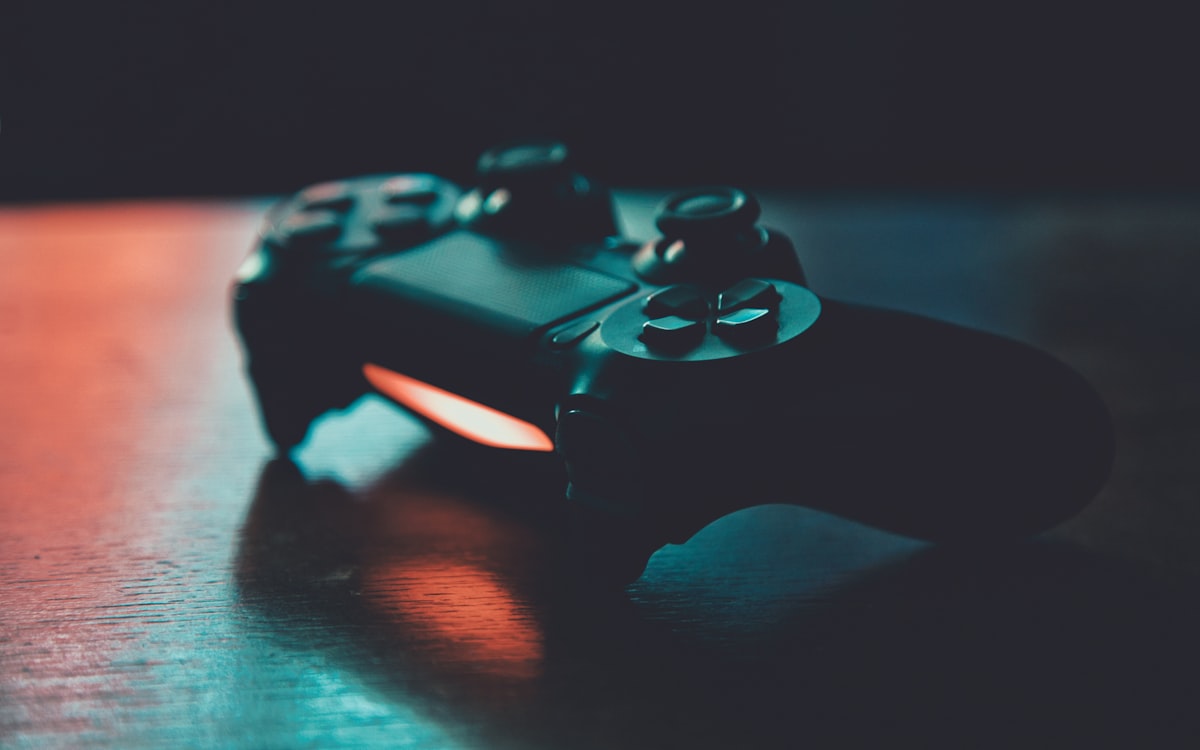
What a controller can do
With NanoPrompter, a paired controller can drive the teleprompter view without touching the keyboard:
- Play and pause the scroll.
- Change speed — left stick up/down.
- Change font size — left stick left/right.
- Any action on any button: mirror mode, flip, fullscreen, jump back and forward. Buttons are mappable, so you decide.
The default layout follows the left stick for speed and size because those are the two adjustments presenters need mid-take. Everything else is yours to assign.
Pairing the controller
Xbox (Xbox One / Series controllers):
- Turn the controller on. If it’s already paired to the console, hold the Xbox button until it turns off first.
- Press the pair button on top (the small one next to the USB port) until the light flashes.
- On your computer, open Bluetooth settings and choose the controller when it appears. Or skip Bluetooth: plug it in with a USB cable, which also charges it.
PlayStation (DualShock 4 / DualSense):
- Hold Create/Share + PS button (DualSense: Create + PS) until the light bar flashes.
- Pair it from your computer’s Bluetooth menu, or connect it with a USB-C cable.
The browser matters: gamepad support is solid in Chrome, Edge and Opera; Firefox works for most controllers; Safari support is patchier, especially on desktop. If the controller doesn’t respond, test in Chrome first — it’s almost never the controller’s fault.
One detail specific to NanoPrompter: connect the controller before opening the teleprompter page. Browsers only report gamepads after the user presses a button on them, so a mid-session pairing needs one button press before it appears.
Mapping buttons to actions
Default shortcuts cover the basics, but the point of a controller is putting your adjustments under your thumbs:
- Open the teleprompter and click the keyboard icon in the controls bar (or check the keyboard shortcuts page for the current defaults).
- Select the action you want — say, mirror mode.
- Press the controller button you want to assign. Done.
A layout that works well for solo presenters:
| Input | Action | Why |
|---|---|---|
| Left stick up/down | Speed +/− | Adjust mid-sentence without looking. |
| Left stick left/right | Font size +/− | Fix readability between takes. |
| A / Cross | Play/pause | Biggest, easiest button for the most used action. |
| X / Square | Jump back | Repeat a fumbled sentence. |
| B / Circle | Mirror | Toggle when you change hardware setups. |
Once mapped, the muscle memory builds in a session or two — the same stick flick you’d use in a game becomes “slower, please”.
Setups where a controller earns its place
- Presenter far from the computer. Camera and mic at distance, controller in hand or on the lectern. Bluetooth covers a normal room; USB if you need zero latency and don’t move much.
- Standing recordings. Keyboard shortcuts assume a desk. A controller works standing, leaning, or mid-gesture.
- Camera on the desk, hands visible. A small controller next to your notes is less visible and less awkward than reaching across the keyboard.
- Live streams and webinars. Adjust speed while talking to the audience instead of flashing a keyboard on camera.
For pure desk recording, the keyboard is still fine — the speed guide explains how to set a pace you barely need to touch. The controller is for everyone else: presenters standing at a distance, speakers recording keynotes or webinar hosts away from the desk.
If something doesn’t respond
- Nothing happens: press any button once, then reload the page with the controller already on. Browsers activate gamepads on first input.
- Works in one browser, not another: use Chrome or Edge as the reference; they have the widest gamepad support.
- Bluetooth drops: interference or distance. A USB cable fixes it permanently.
- A mapping doesn’t stick: reassign it in the shortcuts panel; check you’re not mapping two actions to the same input.
From the drawer to the desk
The controller you already own is the cheapest teleprompter remote that exists. Pair it, press a button, open the teleprompter with your script, and put speed and size under your thumb. Ten minutes of setup, and you stop breaking your own takes.
