The webinar format is unforgiving: fixed start, fixed end, demo in the middle, questions at the close. Every transition you improvise eats the Q&A. Every step you forget in the demo eats credibility.
A teleprompter window next to your meeting software is the quiet fix — your rundown scrolling on your screen while attendees see the slides. NanoPrompter runs in the browser, free, and never joins the meeting. This page explains how webinar hosts use it before and during online sessions.
Where a prompter helps a webinar
The opening two minutes. Latecomers, audio checks, “can everyone see my screen” — the start is chaos, and the script’s job is to survive it. A written opener read from the prompter lands the agenda and the pace in one minute flat.
The demo. Demos fail on the step you skip. A short checklist on screen (three-word lines) walks you through the flow while your hands drive the product. Reading bullets isn’t stiff; forgetting step 3 is.
**Transitions and timing. “That brings us to…”, “before we finish, one more thing…” — written transitions are the difference between a session that ends on time and one that ends mid-thought. When the script shows you’re at the last section with ten minutes left, you adapt consciously instead of discovering it in Q&A.
The close and the CTA. The links, the dates, the offer code: exact wording, read calmly, no “I’ll send these in the follow-up email” for things you meant to say out loud.
The 3-step webinar workflow
1. Build the rundown, not a manuscript. Word-for-word: opener, key claims, demo steps, close. Everything else: short bullets. Paste it into the editor, with blank lines marking each section change — they’re your breathing points and your mental reset.
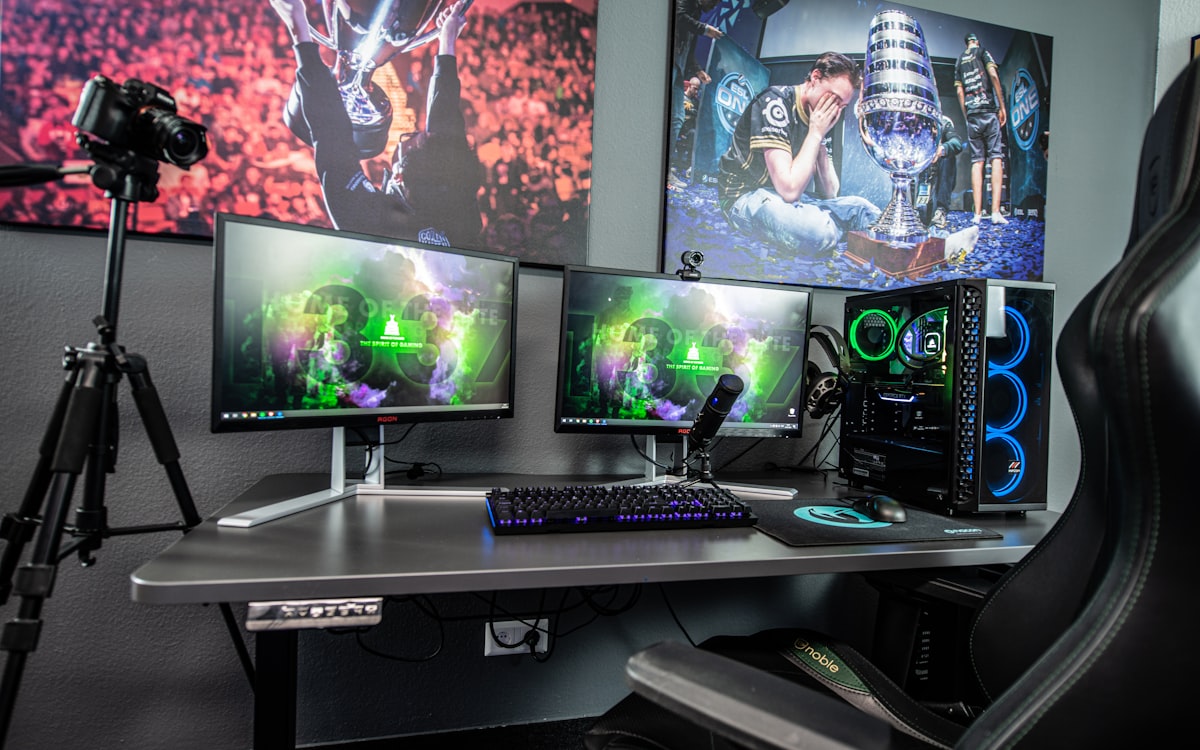
2. Split your screen. Meeting software with the shared slides on one side, teleprompter window on the other (or a second monitor). Match the prompter speed to your presenting pace with one timed rehearsal — the speed guide puts presentations around 110–130 words per minute.
3. Rehearse the two risky minutes. The opener and the demo. Run each once with the prompter scrolling. That’s the rehearsal that pays; the middle of a webinar is material you know.
Webinar-specific tips
- Adjust speed without leaving the meeting. The
+/-keys work while your meeting window keeps focus on screen share — or use a game controller if you present standing or at a distance from the keyboard. - Dark window, professional look. A white prompter window glaring next to your slides is distracting on camera. Dark interface fixes it — see dark mode.
- Record the replay with the same script. Pre-recorded sessions for people who miss the live event: same rundown, cleaner takes, prompter scrolling the whole time.
- Q&A prompts ready. Anticipated questions at the bottom of the script with two-line answers. When someone asks exactly that, you answer in one breath.
- Co-hosted webinars: the prompter belongs to whoever drives the agenda. The co-host reacts — that division of labor works on its own.
Honest limits
The prompter doesn’t host the meeting, share the slides or fix your webcam. It’s a second window with your words on it. If the webinar’s problem is the content — no clear promise, too many slides — the fix is a better rundown, and the script guide is the right starting point.
Also: don’t paste a full manuscript for a live session. Hosts who read forty minutes of prose sound exactly like that. The outline style keeps you conversational; verbatim is only for the parts where wording matters.
Your next webinar, on time
Open the editor, paste your next session’s rundown, and rehearse the opener once tonight. On the day, you’ll be the host checking the clock with a plan instead of checking notes with a hope.