Walk-to-the-keyboard is the most expensive gesture in solo recording. The take is good, the speed is slightly fast, and your options are: break the take, walk three meters, or ride it out and blame the edit.
Gamepad control removes the walk. The controller in a drawer — Xbox, PlayStation, most third-party pads — pairs with the computer, and the browser teleprompter responds to it directly. Speed under your thumb, font size one flick away, play and pause on the biggest button. This page explains what it does and how to set it up in five minutes; the full walkthrough lives in the gamepad guide.
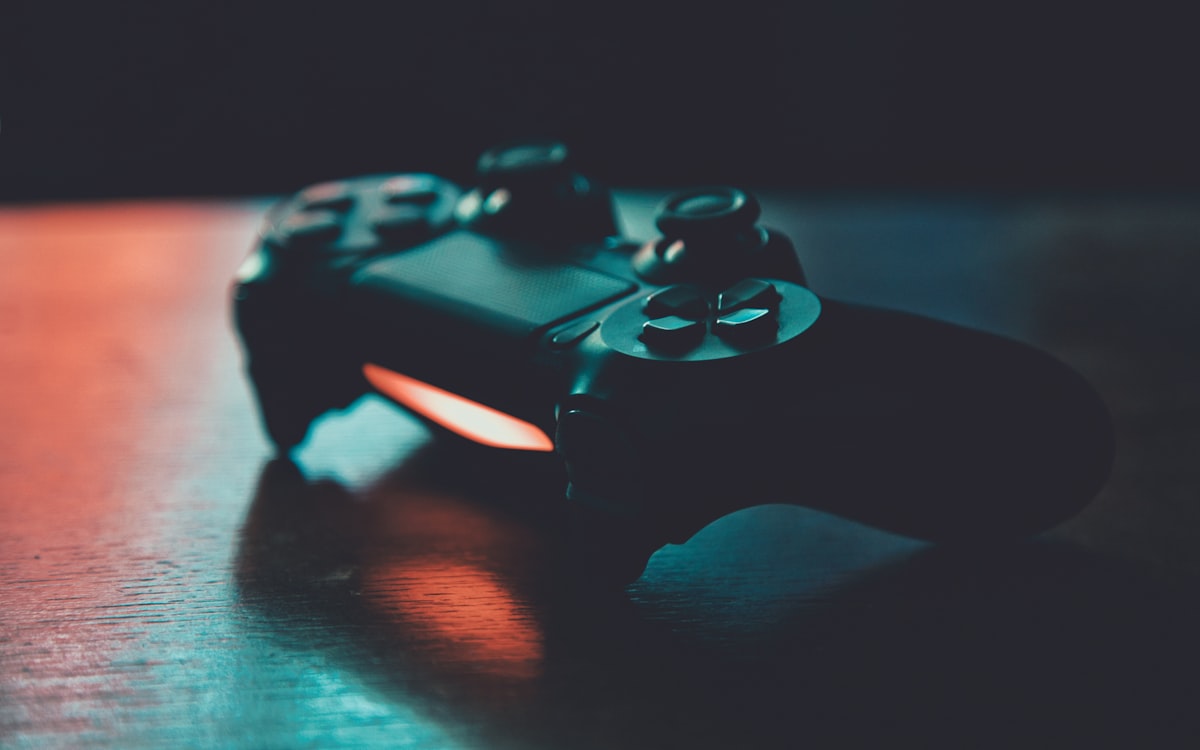
What the controller does
- Speed up / slow down — left stick up and down. The adjustment you make mid-sentence without anyone seeing.
- Font bigger / smaller — left stick left and right. Fix readability between takes without leaving your mark.
- Play / pause — mapped to a main button by default.
- Everything else, wherever you want it: mirror mode, vertical flip, fullscreen, jump back and forward — any action, any button, reassigned in the shortcuts panel (keyboard shortcuts lists the defaults).
The default layout keeps the left stick for the two adjustments presenters actually need while recording, and leaves the face buttons free for your own mapping. A common setup: pause on A/Cross, jump-back on X/Square for repeating a fumbled sentence, mirror on B/Circle for switching rigs.
Setup in five minutes
- Pair the controller. Xbox: hold the pair button until the light flashes, connect via Bluetooth or USB. PlayStation: hold Create/Share + PS button until the light bar flashes. USB cables work for both and never drop.
- Open the teleprompter with the controller already connected, and press any button once — browsers report gamepads only after a first press.
- Check the defaults, remap what you want in the shortcuts panel, and do one dry run to feel the speed adjustment.
One honest note on browsers: gamepad support is strongest in Chrome, Edge and Opera; Firefox is fine for most controllers; Safari desktop is the least reliable. If the pad seems dead, it’s almost always the browser, not the pad.
Who this is for
- Solo presenters standing or far from the computer. Bluetooth covers a normal room; USB for zero latency.
- Studio setups with the camera, and the operator, away from the desk.
- Anyone whose hands are visible on camera — a small controller by your notes reads better than lunging across a keyboard.
- Live streams and webinars where you adjust speed while talking (webinar workflow).
If you record seated at a desk, the keyboard shortcuts remain the simplest option — the gamepad isn’t better, just freer of geography.
Put the drawer controller to work
Open the teleprompter, pair the pad, press a button, and put the scroll under your thumb. The controllers worth keeping in the studio kit are below.
