Reading from a screen feels strange the first time. Your eyes want to jump ahead, your voice flattens, and by the second paragraph you sound like a GPS. This is normal: nobody reads aloud well on the first try, and the fix is a short list of habits, not talent.
This guide covers the whole first session: preparing the script, placing the screen, choosing a speed, and the techniques that make spoken text sound like you. Everything works with any teleprompter, and the examples use NanoPrompter, a free online teleprompter that runs in the browser. If you record videos for a living, the content creators page adapts this workflow to a publishing routine.
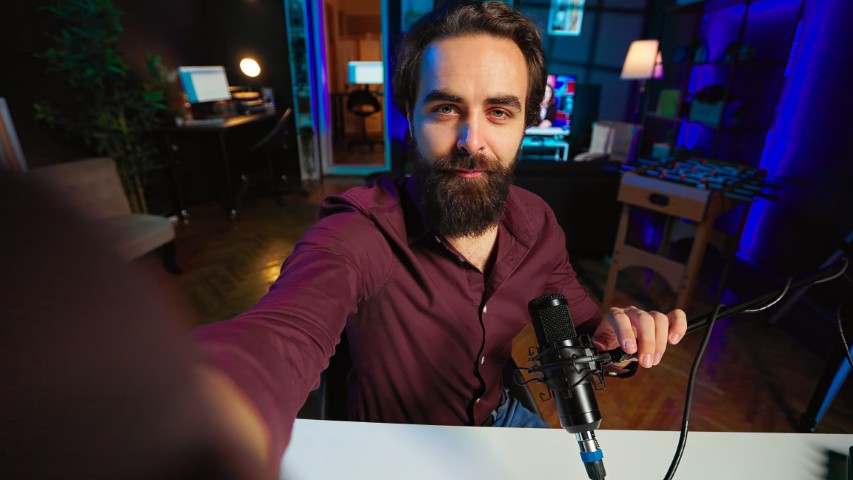
What a teleprompter does (and what it doesn’t)
A teleprompter shows your text scrolling at a steady pace so you can keep eye contact with the camera while speaking. That is all it does. It does not fix a script written for reading instead of speaking, and it does not replace practice. If the text is stiff, no speed setting will save the take.
So the order matters: first a script that sounds like you, then the teleprompter. If you haven’t written it yet, start with our video script template and come back here.
Set up your script in five minutes
- Paste the script into the editor. Open the NanoPrompter editor and paste your text. Break long paragraphs into lines of one or two sentences. Short lines are easier to catch with a glance.
- Pick a large font size. Bigger is better. You should read a full line without moving your eyes sideways. On a laptop, start around 40–48 px and adjust from there.
- Use formatting sparingly. Bold a few key words, or highlight a number you always forget. If everything is highlighted, nothing is.
- Check the mirror settings before recording. If you use physical teleprompter glass, enable mirror mode. On a normal screen, leave it off. Test once so you don’t discover it flipped in the edit.
- Do one dry run. Press play and read without recording. You are checking that the text, the size and the speed feel right, not performing.
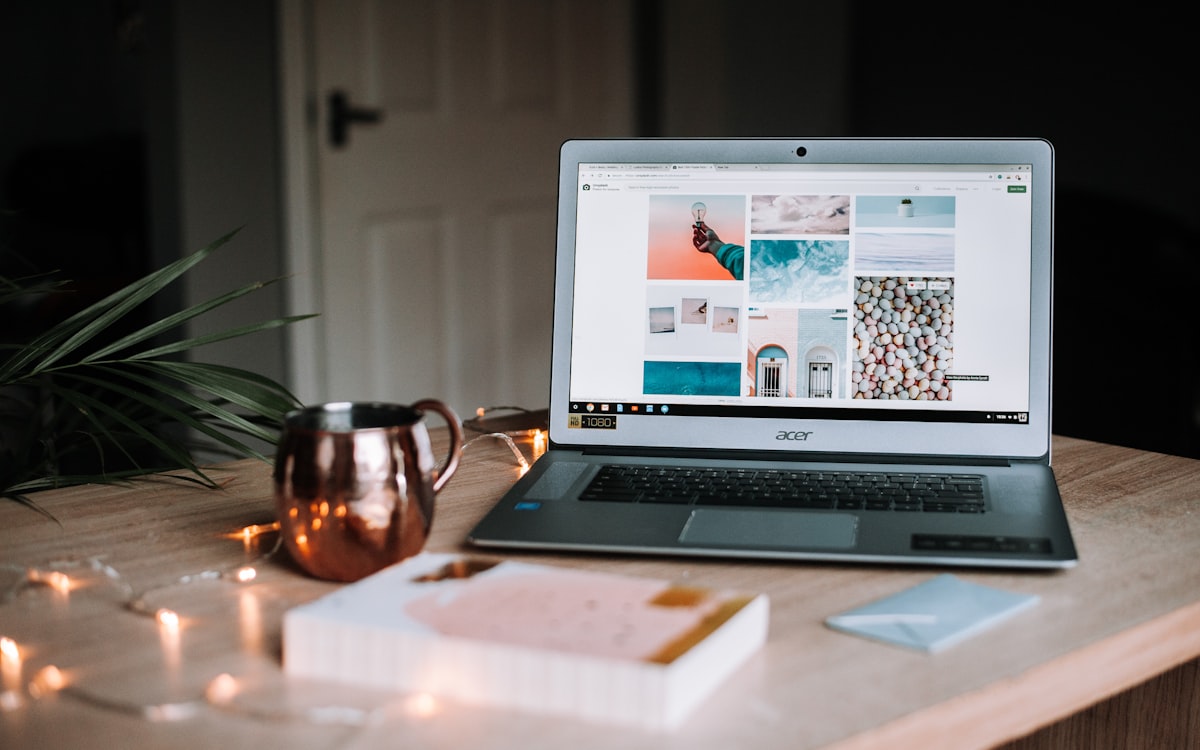
Put the screen in the right place
The goal is simple: the text should sit as close to the lens as possible. Every centimeter between the text and the lens is a centimeter your eyes travel away from “eye contact”.
- Laptop or monitor: place the window right under the camera. Raise the laptop on books if needed so the camera is at eye level.
- Tablet or phone: mount it just below or beside the lens on the same tripod. A cheap mount does the job.
- Distance: about an arm’s length. Farther away means smaller text and wandering eyes.
If viewers say you look distracted even though you didn’t miss a line, eye line is usually the culprit, not your delivery.
Find your reading speed
Teleprompter speed is a number, but the useful unit is words per minute (wpm). Conversational speech in English sits around 130–150 wpm; slower styles like explainer videos work well at 110–130 wpm. We compiled recommended speeds by video type in a separate guide, including a one-minute test to measure your own pace.
For the first session, start slower than feels natural. A slow scroll you occasionally beat is easier to ride than one that drags you along. You can raise the speed with the + key (or a gamepad) while you talk.
How to read without sounding like a robot
These five habits do most of the work:
Write like you talk. Read the script out loud once and fix every sentence you stumble on. If you wouldn’t say it at dinner, don’t say it to the camera. Short sentences. Everyday words.
Mark your own pauses. Insert blank lines or three dots where you want to breathe. Pauses are what make speech sound thought, not read. A pause of half a second feels long to you and natural to the viewer.
Keep your eyes on the lens line. Skim each line a beat before speaking it, then deliver it while looking at the lens, not at the words. With a large font and short lines this becomes automatic after a few takes.
Let your face move. Smile at the start, frown when the content warrants it, nod on your main points. A still face plus steady reading is what creates the “robot” effect. Practicing standing up, with gestures, helps more than any setting.
Do two or three takes, not ten. Take one is warm-up. Take two is usually the best. By take six you’re reciting, not speaking. If a take is 90% good, keep it and move on; you’ll fix the delivery on the next video, not the next take.
First-time mistakes to avoid
- Reading word by word. Read in phrases, the way you speak. Your eyes should land 3–5 words ahead of your mouth.
- Font too small, speed too high. Both make your eyes work harder and your delivery stiffer. Fix the font first, then the speed.
- A script that has never been read aloud. Text that looks fine on paper can be a mouthful. Always do one spoken pass before recording.
- Staring at the text instead of the lens. If the camera can’t be near the text, shrink the window and place it under the lens anyway. Proximity beats size.
- Recording the very first attempt. Keep it as a reference, but expect takes two and three to sound noticeably better.
A simple practice routine
You don’t need a course. Ten minutes a day for a week is enough for a visible change:
| Day | Exercise |
|---|---|
| 1 | Read a 200-word text slowly, no recording. Get used to the scroll. |
| 2 | Record yourself once. Don’t watch it yet. |
| 3 | Read the same text with marked pauses. Record again. |
| 4 | Watch both takes back to back. Note where you speed up. |
| 5 | New text, one take only. Trust the first pass. |
| 6 | Slightly higher speed than comfortable. Stay smooth. |
| 7 | Record a real 60-second video start to finish. |
By day seven most people hear the difference: fewer stumbles, steadier rhythm, and a voice that sounds like their own.
Keep going
The teleprompter is a tool you get better at every time you use it. Set up your script, place the screen near the lens, start slow, and let the pauses do their work. When you’re ready, open the editor and read your first take — it will be better than you expect.
If you want to go deeper next, learn how fast your teleprompter should scroll or how to control the scroll with a game controller.